
HestiaCP ZIP Extraction Fails and Creates .zip.out: Root Cause and Fix
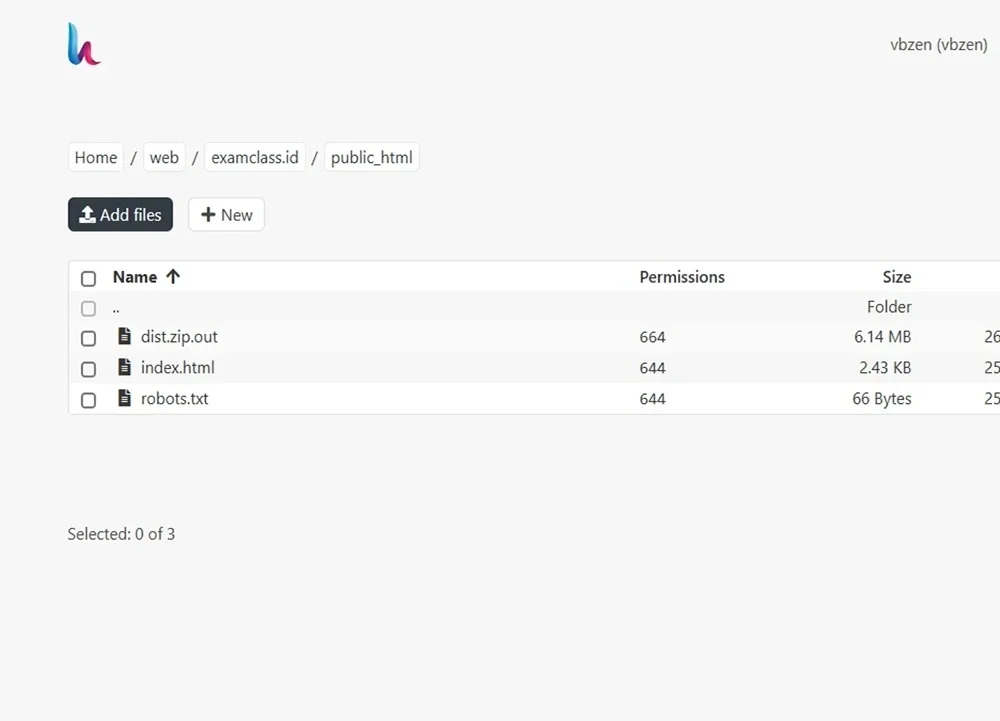
I ran into an unusual HestiaCP File Manager issue where extracting a perfectly valid ZIP archive failed and renamed the file to .zip.out. The archive worked normally over SSH, which eventually led me to a subtle regex bug inside HestiaCP's v-extract-fs-archive script. The surprising trigger was the hosting username itself.
Recently, I ran into a strange issue on a server running HestiaCP 1.10.4.
At first, it looked like a typical File Manager problem.
I uploaded a ZIP archive through the HestiaCP File Manager and tried to extract it as usual. Instead of unpacking the archive, the file unexpectedly turned into:
dist.zip.out
No extracted directory appeared, and the File Manager interface did not provide a particularly useful error message.
What made the situation more confusing was that the exact same ZIP archive extracted successfully when I used unzip directly over SSH.
That was the first important clue.
The ZIP archive itself was probably not the problem.
My first assumption was that the archive might be corrupted.
So I tested it directly from the terminal:
unzip dist.zip
The archive extracted without any issues.
That immediately ruled out several possibilities:
the ZIP file was not corrupted;
the server's unzip package was working;
the filesystem could create and write files;
the archive contents themselves were valid.
At this point, the issue was clearly moving away from the ZIP file and toward the extraction process used internally by HestiaCP.
Since the HestiaCP File Manager could not extract the archive, I temporarily extracted it over SSH as root.
That worked.
However, it created another problem.
The HestiaCP user could no longer edit, rename, or delete some of the extracted files and directories from File Manager.
The reason was straightforward.
Files extracted as root were owned by:
root:root
Meanwhile, HestiaCP File Manager operates using the corresponding hosting account user.
To restore the correct ownership, I could run:
chown -R username:username /path/to/folder
A better approach is to avoid extracting the archive as root in the first place.
Instead, run unzip as the HestiaCP user:
sudo -u username unzip -o file.zip -d /path/to/destination/
This way, the extracted files are created with the correct ownership from the beginning.
That solved the permissions issue.
But it still did not explain why HestiaCP File Manager itself was failing to extract the ZIP archive.
HestiaCP handles archive extraction through:
/usr/local/hestia/bin/v-extract-fs-archive
I first confirmed the installed HestiaCP version:
grep "^VERSION" /usr/local/hestia/conf/hestia.conf
The result was:
VERSION='1.10.4'
Next, I checked how the script was calling unzip:
grep -n "unzip" /usr/local/hestia/bin/v-extract-fs-archive
The relevant line was:
user_exec unzip -o "$src_file" -d "$dst_dir" > /dev/null 2>&1
The -o option was already present, so the problem was not caused by unzip waiting for an interactive overwrite confirmation.
The next step was to run HestiaCP's extraction script directly.
For example:
/usr/local/hestia/bin/v-extract-fs-archive \
username \
/home/username/web/domain.com/public_html/dist.zip \
/home/username/web/domain.com/public_html/
That finally exposed the real clue.
The script returned an error similar to:
mv: '/home/username/web/domain.com/public_html/dist.zip'
and '/home/username/web/domain.com/public_html/dist.zip'
are the same file

Error: .../dist.zip was not extracted
This was unexpected.
Why was a ZIP extraction process calling mv at all?
The ZIP section of the script should simply call:
unzip -o
That meant another archive handler was being triggered before or alongside the ZIP handler.
v-extract-fs-archiveI inspected the part of the script responsible for detecting different archive formats:
sed -n '105,145p' /usr/local/hestia/bin/v-extract-fs-archive
The block responsible for bzip archives looked like this:
if [ -n "$(echo $src_file | grep -i '.bz')" ] && [ -z "$x" ]; then
    user_exec mkdir -p "$dst_dir" > /dev/null 2>&1
    user_exec mv "$src_file" "$dst_dir"
    user_exec bzip2 -d -f "$dst_dir/$(basename $src_file)" > /dev/null 2>&1
    rc=$?
fi
At first glance, it looks reasonable.
But the bug is hidden in this expression:
grep -i '.bz'
In a regular expression, the dot:
.
does not mean a literal period.
It means any single character.
There is another important issue: the script is testing the entire value of:
$src_file
That means it checks the full path, not just the archive filename.
In my case, the HestiaCP username itself contained:
bz
For example, imagine a path like this:
/home/vbzen/web/domain.com/public_html/dist.zip
The substring:
vbz
matches the regular expression:
.bz
because the . matches the v.
As a result, HestiaCP incorrectly treated dist.zip as if it were a bzip archive, even though the file was clearly a ZIP archive.
That also explains why this command suddenly ran:
mv "$src_file" "$dst_dir"
The ZIP file was already located inside the destination directory, so mv correctly reported:
are the same file
The extraction process then failed, and from the File Manager interface the visible symptom was a .zip.out file.
The actual problem was not the ZIP archive.
It was not unzip.
It was not even a filesystem permission issue.
The unexpected trigger was the username appearing inside the full source path and accidentally matching an overly broad regular expression.
.bz Archive DetectionBefore modifying a HestiaCP system script, I created a backup:
cp -a /usr/local/hestia/bin/v-extract-fs-archive \
/root/v-extract-fs-archive.backup-$(date +%F-%H%M%S)
The problematic condition was:
if [ -n "$(echo $src_file | grep -i '.bz')" ] && [ -z "$x" ]; then
I changed it to:
if [ -n "$(basename "$src_file" | grep -iE '\.bz2?$')" ] && [ -z "$x" ]; then
There are two important improvements here.
First, the script now checks only:
basename "$src_file"
This prevents directory names, usernames, or other parts of the path from accidentally influencing archive detection.
Second, the regular expression is now:
\.bz2?$
Here:
\. matches an actual period;
bz2? matches both .bz and .bz2;
$ ensures the extension appears at the end of the filename.
So files such as:
backup.bz
backup.bz2
are still detected correctly.
But a path such as:
/home/vbzen/.../dist.zip
will no longer be incorrectly classified as a bzip archive.
After making the change, I checked the shell syntax:
bash -n /usr/local/hestia/bin/v-extract-fs-archive && echo "SYNTAX OK"
The result was:
SYNTAX OK
Then I ran the extraction again through HestiaCP's own command:
/usr/local/hestia/bin/v-extract-fs-archive \
username \
/home/username/web/domain.com/public_html/dist.zip \
/home/username/web/domain.com/public_html/
This time the process completed successfully:
EXIT: 0
The archive was extracted normally.
There was no longer an:
are the same file
error.
The extraction failure was gone.
This was one of those server issues where almost every visible symptom pointed in the wrong direction.
When a ZIP archive suddenly becomes:
.zip.out
it is reasonable to suspect:
a corrupted ZIP file;
a broken unzip installation;
File Manager permissions;
insufficient disk space;
an extraction timeout;
a HestiaCP File Manager problem.
In this case, however, none of those were the root cause.
The entire issue came down to this small regular expression:
grep -i '.bz'
Because it was being applied to the full file path, an unrelated string inside the username was enough to trigger the wrong extraction handler.
This is also a good reminder that when debugging shell scripts, a filename is not always the only variable that matters. If a script performs regex matching against a complete filesystem path, directory names and usernames can affect the result as well.
For extension checks, testing the filename itself is generally safer than testing the entire path.
Instead of:
echo "$file" | grep '.bz'
a more precise approach is:
basename "$file" | grep -iE '\.bz2?$'
Another option in shell scripts is to use shell pattern matching rather than invoking grep, depending on the requirements of the script.
The important point is to make the check specific enough that unrelated directory or username strings cannot trigger it.
There was another useful lesson from this incident.
If you need to extract an archive manually on a HestiaCP server, avoid running unzip as root when the extracted files need to remain manageable through the hosting user's File Manager.
Instead of:
unzip file.zip
as root, use:
sudo -u username unzip -o archive.zip -d /path/to/destination/
This ensures that extracted files belong to the correct HestiaCP account.
If files were already extracted as root, their ownership can be corrected with:
chown -R username:username /path/to/folder
Be careful with recursive chown commands on production websites. It is better to target only the files or directories that actually have incorrect ownership.
The HestiaCP ZIP extraction failed issue I encountered was not caused by a damaged archive or a broken unzip package.
The real problem was inside:
/usr/local/hestia/bin/v-extract-fs-archive
The script used:
grep -i '.bz'
against the entire source file path.
Because the hosting username happened to contain a pattern matching .bz, a normal .zip file was incorrectly detected as a bzip archive.
That caused the script to execute the wrong extraction block, attempt to move the ZIP file into the directory where it already existed, and ultimately fail.
Changing the check to:
basename "$src_file" | grep -iE '\.bz2?$'
made the archive detection more precise and allowed ZIP extraction to work normally again.
The biggest takeaway from this troubleshooting session is that not every server problem comes from major components such as Nginx, PHP, filesystem permissions, or storage.
Sometimes the entire issue comes down to one overly broad regular expression.
And that one line can make a perfectly normal File Manager feature look completely broken.
This modification was made directly to a HestiaCP system file:
/usr/local/hestia/bin/v-extract-fs-archive
A future HestiaCP update may overwrite the change.
For that reason, keep a backup of the modified file and check the .bz detection logic again after upgrading HestiaCP.
If a newer HestiaCP release already includes an upstream fix, use the official implementation instead of maintaining a custom patch.
Before modifying any system script on a production server, always create a backup first.
A single backup command can save a lot of time if a change needs to be rolled back.
.zip.out file when I try to extract a ZIP archive?A .zip.out file can appear when HestiaCP's archive extraction process fails and output from the command is captured instead of the archive being successfully extracted.
In this particular case, the ZIP archive was incorrectly detected as a bzip file because the .bz regex check was applied to the entire source path.
When you run:
unzip archive.zip
directly over SSH, you bypass HestiaCP's v-extract-fs-archive detection logic.
If the ZIP works over SSH but fails through File Manager, the archive itself may be valid and the problem may exist in HestiaCP's extraction workflow instead.
v-extract-fs-archive do in HestiaCP?v-extract-fs-archive is a HestiaCP command used to handle archive extraction for supported formats.
Its location is:
/usr/local/hestia/bin/v-extract-fs-archive
It detects the archive format and then calls tools such as unzip, gzip, bzip2, tar, or other archive utilities.
grep -i '.bz'?The dot in:
.bz
is a regular expression wildcard.
It matches any single character rather than a literal dot.
In addition, the original check was being performed against the complete source path.
That meant a username or directory containing a matching character sequence could accidentally satisfy the .bz check.
basename "$src_file"?basename removes the directory portion of a path and returns only the filename.
For example:
/home/vbzen/web/example.com/public_html/dist.zip
becomes:
dist.zip
This prevents usernames and directory names from interfering with archive extension detection.
\.bz2?$ mean?The expression:
\.bz2?$
matches filenames ending in either:
.bz
or:
.bz2
\. matches a literal period, 2? makes the number 2 optional, and $ requires the match to occur at the end of the filename.
If you extract an archive while logged in as root, the resulting files may be owned by:
root:root
The regular HestiaCP hosting user may then be unable to modify or delete them.
To avoid this, extract the archive as the HestiaCP user:
sudo -u username unzip -o archive.zip -d /path/to/destination/
If the files should belong to a specific HestiaCP user, you can correct their ownership:
chown -R username:username /path/to/folder
Use recursive ownership changes carefully on production servers and target only the affected files or directories whenever possible.
It may.
The modification is inside:
/usr/local/hestia/bin/v-extract-fs-archive
which is managed by HestiaCP.
After upgrading HestiaCP, check whether the archive detection logic has been updated upstream. If the official release contains a proper fix, prefer the official version rather than reapplying a custom patch.
I ran into an unusual HestiaCP File Manager issue where extracting a perfectly valid ZIP archive failed and renamed the file to .zip.out. The archive worked normally over SSH, which eventually led me to a subtle regex.