
MikroTik DNS Cache Full: Root Cause, Firewall Fix, and PPPoE Cleanup on CCR1009
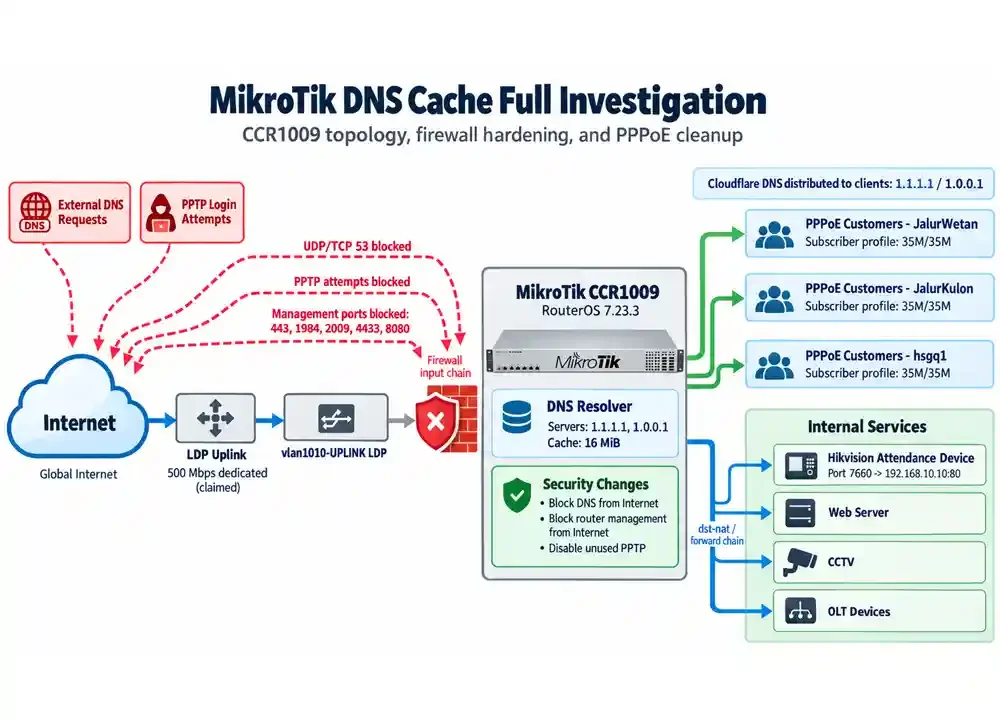
It started as a normal morning check.
I opened Winbox on our MikroTik CCR1009 just to verify the network condition, review PPPoE sessions, check traffic, and make sure the Internet connection was running normally.
But as soon as Winbox opened, the log window immediately started showing repeated DNS errors:
dns,error cache full, not storing
dns,error cache full, not storing [ignoring repeated messages]
At first, the message looked more serious than it actually was.
My first questions were obvious:
Was the router storage full?
Was the CCR running out of RAM?
Was RouterOS having a problem?
Was there some kind of DNS-related attack?
After checking the router step by step, the real cause became much clearer.
And interestingly, that single DNS error led to several other useful discoveries in the network configuration.
The router in this case was:
MikroTik CCR1009-7G-1C-1S+
RouterOS 7.23.3
RAM 2 GB
The first thing I checked was system resource usage:
/system resource print
The result was approximately:
free-memory: 1533.8MiB
total-memory: 2048.0MiB
cpu-load: 4%
free-hdd-space: 62.3MiB
bad-blocks: 0%
This immediately ruled out several possibilities.
The router still had around 1.5 GB of free RAM, CPU usage was only around 4%, and storage was not critically full.
So the error was clearly not caused by system memory exhaustion.
The next step was checking DNS:
/ip dns print
That was where the actual problem became obvious:
servers: 1.1.1.1
         1.0.0.1

allow-remote-requests: yes

cache-size: 2048KiB
cache-used: 2048KiB
The DNS cache was completely full.
The configured cache size was only 2 MiB, and all of it had already been consumed.
To see how many DNS records were stored, I ran:
/ip dns cache all print count-only
The result was around:
9807
So the router was holding almost 10,000 DNS cache entries.
Because the CCR1009 still had plenty of available RAM, increasing the DNS cache was a reasonable first step.
I changed it from 2 MiB to 16 MiB:
/ip dns set cache-size=16384KiB
/ip dns cache flush
Then I checked the DNS configuration again:
/ip dns print
The result:
cache-size: 16384KiB
cache-used: 106KiB
After the router had been running normally for a while, the cache increased only to around:
cache-used: 408KiB
That was still far below the new 16 MiB limit.
The repeating error:
dns,error cache full, not storing
stopped appearing.
At this point, the immediate symptom had been resolved.
But the investigation was not finished.
While reviewing the firewall, I noticed an older rule that had already been blocking external DNS requests.
The packet counters were surprisingly high:
TCP DNS : around 50,000 packets
UDP DNS : almost 15 million packets
Nearly 15 million UDP packets to port 53 had already been dropped.
That immediately raised another concern.
The MikroTik DNS setting was:
allow-remote-requests: yes
This is useful when the router is intentionally providing DNS resolver services to internal devices.
However, if TCP or UDP port 53 is reachable from the public Internet, the router may become a target for scanning, abuse, or open-resolver traffic.
So the next task was making sure DNS access was blocked properly from the Internet.
Initially, I added firewall rules based on the existing WAN interface list:
add chain=input action=drop \
    in-interface-list=WAN \
    protocol=udp \
    dst-port=53
and a similar rule for TCP.
But when I checked the counters, the result was:
0 packets
No DNS traffic was hitting the new rules.
Meanwhile, the old DNS-blocking rules were still increasing.
That meant the traffic was not entering through the interface I had assumed.
After checking:
/ip address print detail
I found the actual Internet-facing interface.
The public IP addresses were assigned to:
vlan1010-UPLINK LDP
not directly to ether1.
That distinction matters.
RouterOS sees traffic arriving through the logical VLAN interface, so matching only the physical Ethernet port was not enough.
The DNS firewall rules were then changed to match the real uplink interface:
/ip firewall filter
add chain=input action=drop \
    in-interface="vlan1010-UPLINK LDP" \
    protocol=udp \
    dst-port=53 \
    comment="DROP DNS UDP FROM INTERNET"

add chain=input action=drop \
    in-interface="vlan1010-UPLINK LDP" \
    protocol=tcp \
    dst-port=53 \
    comment="DROP DNS TCP FROM INTERNET"
After that, I checked the counters:
/ip firewall filter print stats where chain=input
The new rule immediately started receiving traffic:
DROP DNS UDP FROM INTERNET
293 packets
A short time later:
527 packets
and the counter continued to increase.
That confirmed the issue.
External DNS requests were still actively reaching the MikroTik, and the new firewall rule was now dropping them before they could reach the DNS resolver.
During the same audit, I also reviewed RouterOS services.
One interesting entry appeared on TCP port 8080:
name="wproxy" port=8080 proto=tcp
There had also been an active connection targeting:
103.xxx.xxx.xxx:8080
from an external IP address.
At first, this looked like a potentially exposed MikroTik Web Proxy.
However, after checking:
/ip proxy print
the result showed:
enabled: no
status: stopped
and:
/ip proxy connections print detail
showed no active proxy connections.
So the MikroTik Web Proxy itself was not actually running.
Even so, I decided to keep TCP port 8080 blocked from the Internet as part of the router management hardening.
The CCR also had several management-related services enabled, including:
TCP 443
TCP 1984
TCP 2009
TCP 4433
TCP 8080
For this network, Winbox was using:
TCP 1984
and management access was normally coming from an internal private IP address.
So I added a rule to prevent direct Internet access to the router management services:
/ip firewall filter
add chain=input action=drop \
    in-interface="vlan1010-UPLINK LDP" \
    protocol=tcp \
    dst-port=443,1984,2009,4433,8080 \
    comment="BLOCK ROUTER MANAGEMENT FROM INTERNET" \
    place-before=0
This blocks direct access to the router itself.
It does not automatically break destination NAT rules that forward traffic to internal servers, because those forwarded connections pass through the forward chain rather than the input chain.
That distinction is important when hardening a production MikroTik.
One existing firewall rule referenced TCP port 7660.
That port was not an accidental exposure.
It was intentionally used to access a Hikvision attendance device at the village office.
The NAT flow looked like this:
Internet
Public-IP:7660
        ↓ dst-nat
192.168.10.10:80
        ↓
Hikvision Attendance Device
The actual destination NAT rule was similar to:
chain=dstnat
action=dst-nat
dst-address=PUBLIC-IP
dst-port=7660
to-addresses=192.168.10.10
to-ports=80
That port-forward had to remain available.
This is also a good reminder that firewall cleanup should not be done blindly.
A port that looks suspicious may actually have a legitimate operational purpose.
During the troubleshooting process, another log entry kept appearing:
user admin authentication failed
At first, I thought this was related to my Winbox session.
I was logged in as admin, so the message looked suspicious.
To investigate it properly, I ran:
/log print where message~"authentication failed"
The result showed something very different:
pptp,ppp,error <12892>: user admin authentication failed
pptp,ppp,error <12893>: user admin authentication failed
pptp,ppp,error <12894>: user admin authentication failed
...
pptp,ppp,error <12916>: user admin authentication failed
These were not failed Winbox logins.
They were failed PPTP authentication attempts.
Someone on the Internet was repeatedly attempting to log in to the router's PPTP server using the username:
admin
The attempts occurred every few minutes.
That strongly suggested automated Internet scanning or brute-force activity.
I checked the PPTP server:
/interface pptp-server server print
The result showed:
enabled: yes
max-mtu: 1450
max-mru: 1450
authentication: mschap1
                mschap2
default-profile: default-encryption
Then I checked for PPTP users:
/ppp secret print detail where service=pptp
There were none.
I also checked:
/ppp secret print detail where service=any
That was empty as well.
So the PPTP server was enabled even though no PPP account was configured to use it.
The service was unnecessary.
I disabled it:
/interface pptp-server server set enabled=no
After that, the recurring PPTP authentication failures stopped.
This was one of the most useful findings from the entire audit.
An old service that was no longer required had been exposed to the Internet and was continuously attracting login attempts.
The log also contained messages like:
pppoe,ppp,error <8022>: user ibusawinah@margajaya authentication failed
This was unrelated to the PPTP issue.
The PPPoE user:
ibusawinah@margajaya
had already been disabled in /ppp secret.
The customer's router or ONT was still attempting to reconnect using that disabled account.
That explained why several PPPoE authentication failures appeared in a row.
So there were actually two different issues in the same log:
PPTP "admin" failures
→ Internet scanning

PPPoE customer authentication failures
→ Customer device still reconnecting with a disabled account
Since I was already auditing the router, I continued with the PPPoE configuration.
The main profiles included:
JalurWetan
JalurKulon
hsgq1
BISNIS
ADMIN
Admin_GET
Aing
Ketapang
ISOLIR
For regular subscribers, the main rate limit was:
35M/35M
RouterOS automatically created dynamic Simple Queues such as:
name=<pppoe-customer>
limit-at=35M/35M
max-limit=35M/35M
queue=default-small/default-small
So the customer bandwidth limits were working correctly.
There was no active Queue Tree configuration, and old gaming, social media, marketplace, YouTube, DNS, and WhatsApp mangle rules were all disabled.
That made the active traffic shaping configuration relatively simple.
Some PPP profiles had DNS addresses configured as WINS servers.
For example:
wins-server=8.8.8.8,208.67.220.220
That configuration did not make sense.
Google DNS and OpenDNS are DNS resolvers, not WINS servers.
So I removed those WINS values:
/ppp profile
set [find name="JalurWetan"] wins-server=""
set [find name="JalurKulon"] wins-server=""
set [find name="hsgq1"] wins-server=""
set [find name="ISOLIR"] wins-server=""
This removed an unnecessary legacy configuration.
The profiles originally used:
only-one=default
I changed the subscriber profiles to:
only-one=yes
for profiles such as:
JalurWetan
JalurKulon
hsgq1
BISNIS
Aing
Ketapang
Admin_GET
The commands were:
/ppp profile
set [find name="JalurWetan"] only-one=yes
set [find name="JalurKulon"] only-one=yes
set [find name="hsgq1"] only-one=yes
set [find name="BISNIS"] only-one=yes
set [find name="Aing"] only-one=yes
set [find name="Ketapang"] only-one=yes
set [find name="Admin_GET"] only-one=yes
This helps prevent a single PPPoE username from being used by multiple sessions at the same time.
The router itself was already using Cloudflare DNS:
1.1.1.1
1.0.0.1
However, several PPPoE profiles were still distributing a mix of DNS servers such as:
8.8.8.8
208.67.222.222
208.67.220.220
I wanted a simpler and more consistent setup.
So the PPPoE profiles were changed to use only:
1.1.1.1
1.0.0.1
For example:
/ppp profile
set [find name="JalurWetan"] dns-server=1.1.1.1,1.0.0.1
set [find name="JalurKulon"] dns-server=1.1.1.1,1.0.0.1
set [find name="hsgq1"] dns-server=1.1.1.1,1.0.0.1
Other relevant profiles can be standardized the same way.
Existing PPPoE sessions normally receive the updated DNS information after reconnecting.
Another issue became visible in the PPP profiles.
For example:
JalurWetan
local-address=dhcp_pool2
remote-address=dhcp_pool2
The same pattern was used for other profiles.
This means both sides of each PPP session receive addresses from the same pool.
One active session, for example, looked like:
local PPP address  : 192.168.20.74
remote user address: 192.168.20.222
That means one PPPoE customer can consume two addresses from the same pool.
The preferred design is generally:
local-address  = one fixed router-side address
remote-address = customer pool
That prevents unnecessary address consumption.
For example:
JalurWetan
local-address  = one fixed local address
remote-address = dhcp_pool2
The same idea applies to:
JalurKulon
hsgq1
BISNIS
Ketapang
However, I did not change this immediately because many subscribers already had long-running sessions.
That type of change is better performed during a maintenance window.
The bisnis pool originally looked like:
192.168.2.100-192.168.2.200
But several PPP secrets had fixed addresses inside that same range.
For example:
SMP:
local  192.168.2.121
remote 192.168.2.122

Kecamatan:
local  192.168.2.123
remote 192.168.2.124

Mahnaz:
local  192.168.2.199
remote 192.168.2.200
These addresses should not also be available to the dynamic pool.
Otherwise, a dynamically assigned PPP session could potentially receive an address that had already been reserved for a static PPP user.
After checking active PPP sessions and dynamic local addresses, the reserved addresses could be safely excluded from the pool.
The updated pool became:
/ip pool
set [find name="bisnis"] \
ranges=192.168.2.100-192.168.2.120,192.168.2.125-192.168.2.198
This reserves:
192.168.2.121
192.168.2.122
192.168.2.123
192.168.2.124
192.168.2.199
192.168.2.200
for the static PPP users.
The upstream provider stated that the connection was:
500 Mbps dedicated
To inspect the actual traffic, I monitored:
/interface monitor-traffic [find name="vlan1010-UPLINK LDP"]
At one point, the highest value I saw was only around:
222 Mbps
That does not mean the connection is limited to 222 Mbps.
monitor-traffic shows current traffic usage, not maximum link capacity.
If customers are only using 200 Mbps at that moment, the interface will only display around 200 Mbps.
To verify a 500 Mbps dedicated service properly, the network needs enough traffic demand to actually approach that capacity.
For example, during peak usage or a controlled speed test from a device that is not limited to 35 Mbps, the uplink should ideally approach values such as:
470 Mbps
480 Mbps
490 Mbps
if the full 500 Mbps is available.
Instead of manually watching real-time traffic all day, I enabled RouterOS Graphing on the Internet uplink.
The interface being monitored was:
vlan1010-UPLINK LDP
A graphing entry can be created using:
/tool graphing interface
add interface="vlan1010-UPLINK LDP" \
    allow-address=MANAGEMENT-IP/32 \
    store-on-disk=no \
    comment="Grafik Bandwidth Internet LDP"
I used:
store-on-disk=no
to avoid unnecessary writes to the CCR1009 internal storage.
Resource graphing can also be enabled:
/tool graphing resource
add allow-address=MANAGEMENT-IP/32 \
    store-on-disk=no \
    comment="Resource CCR1009"
This makes it easier to compare:
daytime traffic,
evening peak traffic,
CPU usage,
RAM usage,
and whether the uplink regularly approaches the 500 Mbps service limit.
A simple warning:
DNS cache full
ended up exposing several useful details about the router configuration.
The audit revealed:
The default 2 MiB DNS cache was completely full.
The router was receiving a significant amount of DNS traffic from the Internet.
The actual WAN traffic entered through a VLAN interface, not directly through the physical Ethernet interface.
DNS port 53 needed to be filtered on the correct uplink interface.
An unused PPTP server was still enabled and being targeted by repeated authentication attempts.
Several PPP profiles still contained outdated or unnecessary settings.
Static PPP addresses overlapped with dynamic IP pools.
PPP local and remote addresses were consuming the same pool.
Bandwidth usage needed to be monitored over time rather than judged from a single real-time value.
After the DNS changes, the cache condition improved dramatically.
Before:
cache-size: 2048KiB
cache-used: 2048KiB
After:
cache-size: 16384KiB
cache-used: only a few hundred KiB
The external DNS traffic was also being dropped correctly by the firewall.
If your MikroTik router shows:
dns,error cache full, not storing
do not immediately assume the router is running out of RAM or storage.
Start with:
/ip dns print
/system resource print
Pay attention to:
cache-size
cache-used
allow-remote-requests
Then check whether DNS port 53 is reachable from an untrusted or Internet-facing interface.
Also review:
/ip firewall filter print stats
/ip service print detail
/log print where message~"authentication failed"
If the router is serving many PPPoE customers, a 2 MiB DNS cache may simply be too small.
However, increasing the cache alone may only hide the symptom.
The more complete solution may involve:
increasing the DNS cache
+
flushing old cache entries
+
blocking public DNS access
+
disabling unused services
+
cleaning up PPPoE profiles
+
separating static and dynamic IP allocations
This incident started with a simple morning routine.
I opened Winbox expecting nothing more than a quick network check.
Instead, the first thing I saw was:
dns,error cache full, not storing
That single message eventually led to:
a DNS cache fix,
better firewall rules,
PPTP shutdown,
PPPoE cleanup,
cleaner DNS settings,
safer IP pool design,
and better Internet bandwidth monitoring.
Sometimes a small warning in RouterOS is not just an error to clear.
It is an opportunity to review the entire network design.
And in this case, one “DNS cache full” message turned into a much more useful MikroTik CCR1009 audit.
What started as a simple **DNS cache full** warning turned into a useful review of the entire MikroTik CCR1009 configuration. By increasing the DNS cache, blocking unwanted DNS traffic, disabling unused PPTP services, and cleaning up PPPoE settings, the router became more secure, efficient, and easier to monitor.
The key lesson is simple: **do not treat RouterOS warnings as isolated errors**. They are often valuable indicators of deeper configuration issues that are worth investigating.